

Application Portfolio Submission Guide
This guide provides a step-by-step walkthrough for submitting your supplemental portfolio through the Common Application and SlideRoom platforms. Follow the instructions to submit your portfolio.
- If you have not already, add Providence College to your “My Colleges” List.
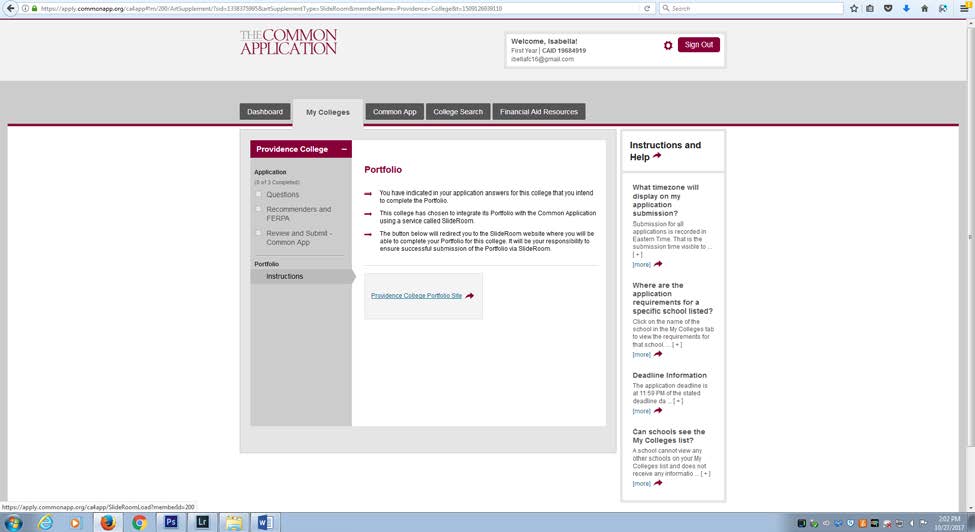
- Go to Providence College. On the left hand side is a bar, and all the way at the bottom it says Portfolio. Click on “Instructions”.
- Once you’ve done this, click on the link provided and this will take you to SlideRoom. If you haven’t already, make an account for SlideRoom.
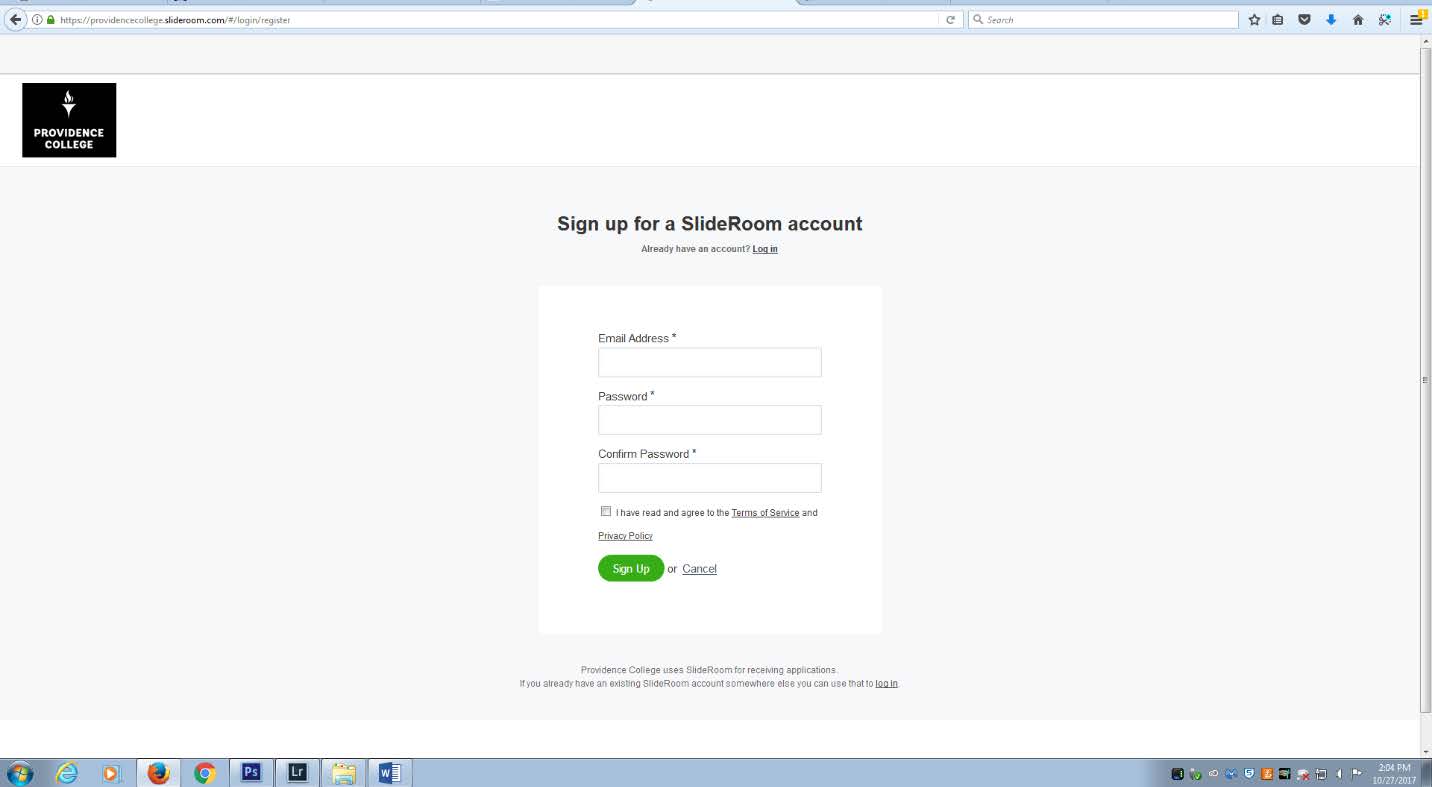
- Once you have logged in, you will be taken to the Directory.
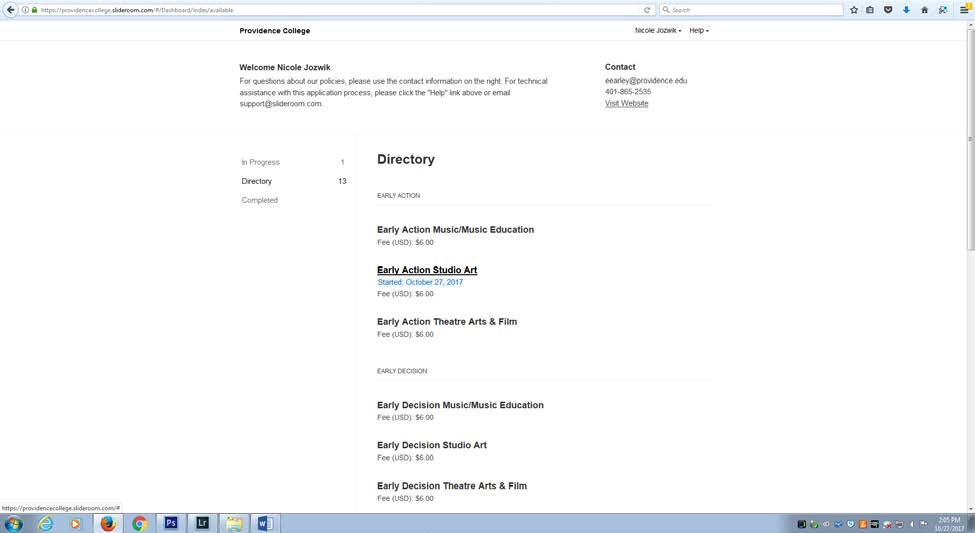
- Click on the application type that pertains to you. Example: If you want to submit an art portfolio for early action click on “Early Action Studio Art”.
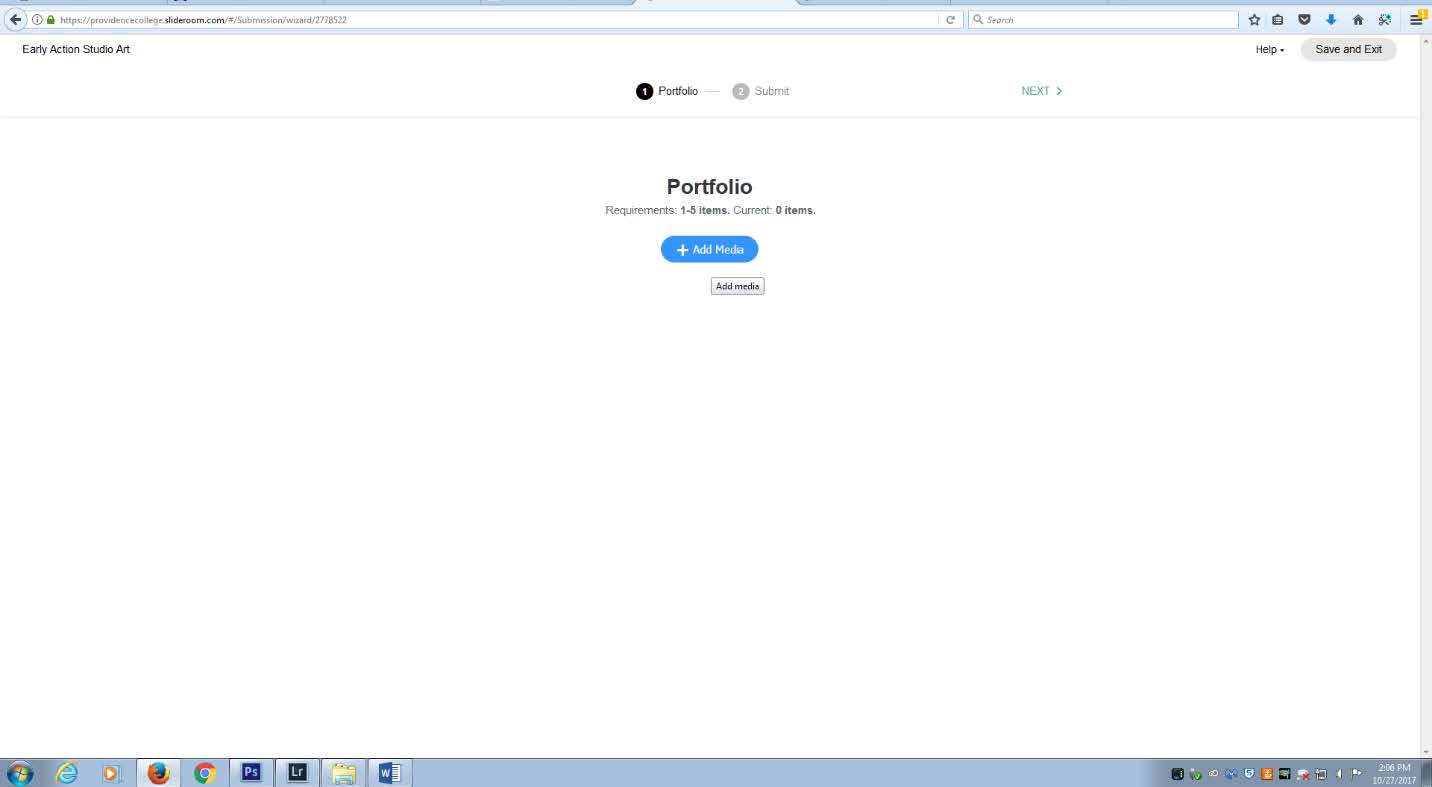
- You will come to the portfolio icon.
- Click on “Add Media” to add a piece to the portfolio.
- Pay special attention to the size of the file before selecting an image.
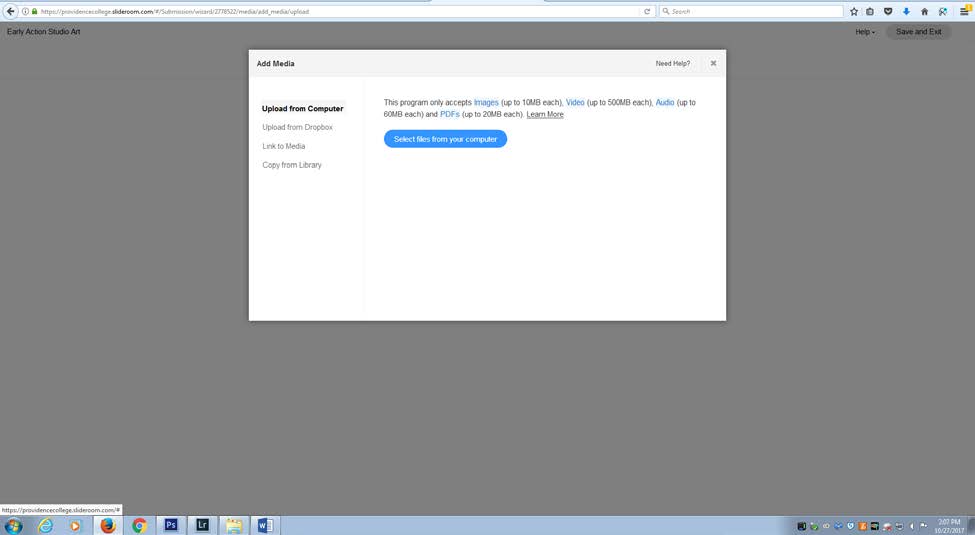
- Once selected continue onto “Label Media”.
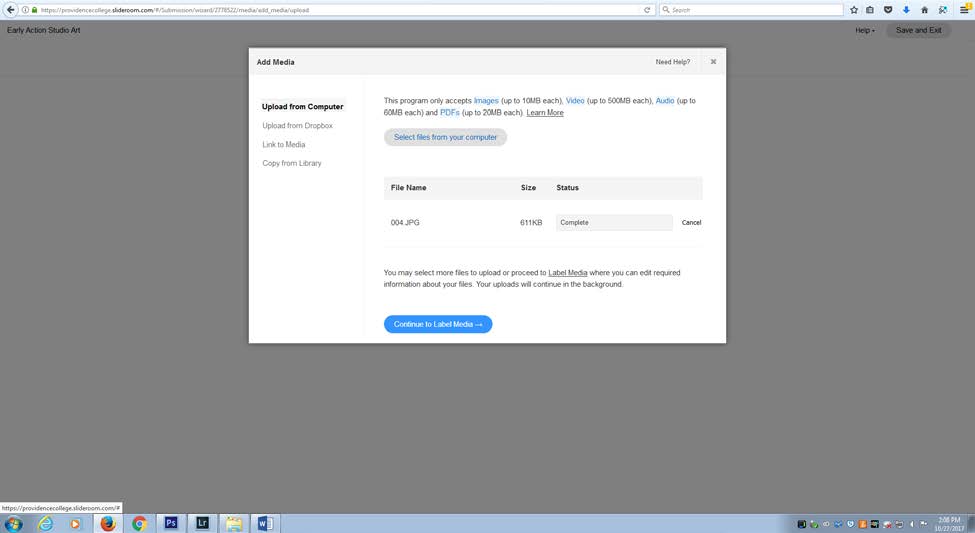
- Once you have selected an image, fill out the title and additional details. For the additional details you can include things such as the medium, dimensions, thought process, etc.
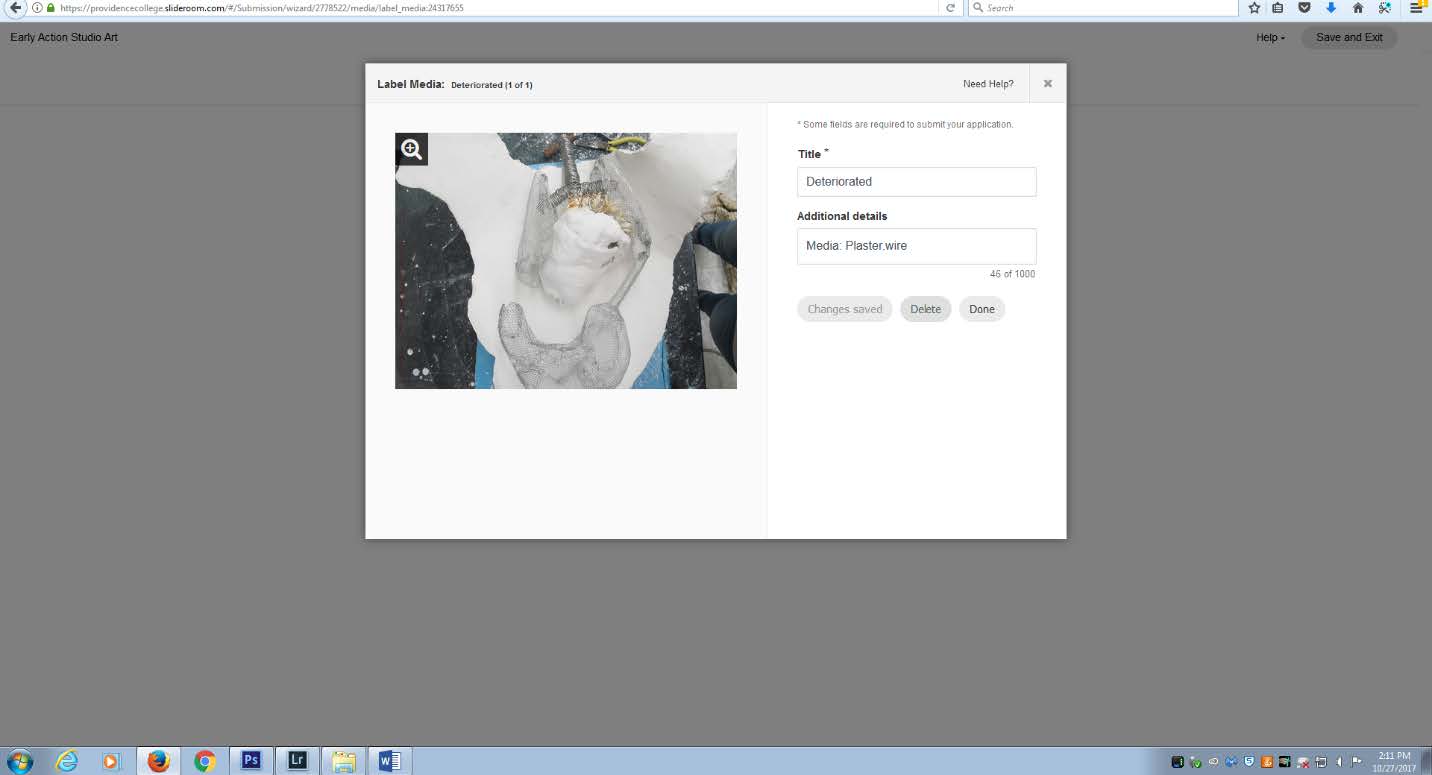
- Always click save as you finish describing each image.
- You can continue adding and describing images until the quota is reached.
- Once you have made your portfolio go to the top right and hit continue. This will move you onto the submission process.
- Follow the instructions to submit your portfolio.